

This article contains affiliate links.
Of course the first thing you need to do is make an account, simply go here for Bluehost’s home page and sign up.

Once you’ve signed up, it’s time to choose a domain which you can do during the sign up process.
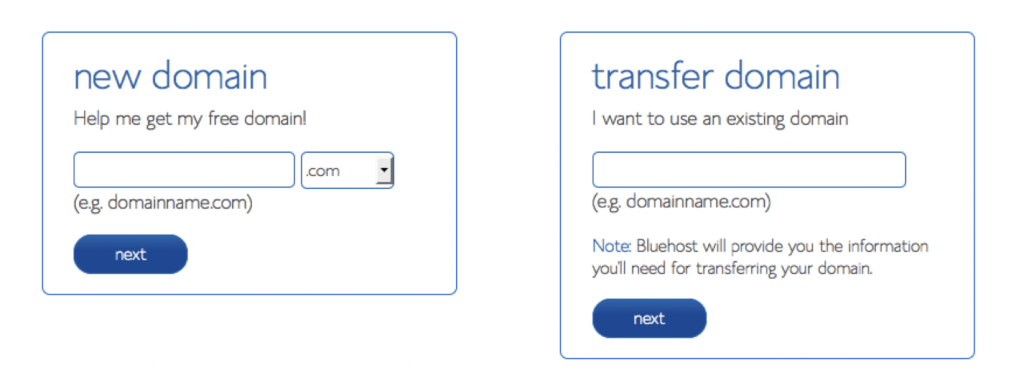
In the case that you already have a domain, it’s just a matter of taking a few extra steps to get your DNS pointed to Bluehost
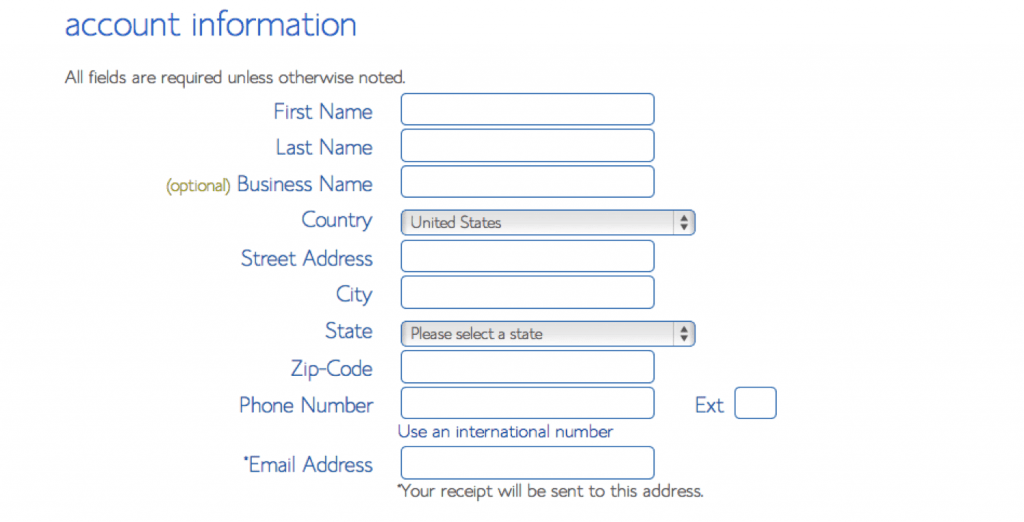
Once you’ve chosen a domain name just fill out your personal information
Then it’s time to choose your hosting package!
Normal, shared hosting is priced at 12, 24 and 36-month terms, the longer the term the more money you’ll save as the monthly rate is lower. With the 36-month plan you’ll get it for an introductory rate of $2.94 or $2.33 (at the time of writing)
If you ever need more than a shared hosting account, Bluehost makes the upgrades to VPS or dedicated server hosting available inside your control panel.
There are a few other features provided at sign up that you can either opt in to or out of. Domain privacy, is a paid service but usually a good idea as it will keep your personal information private.
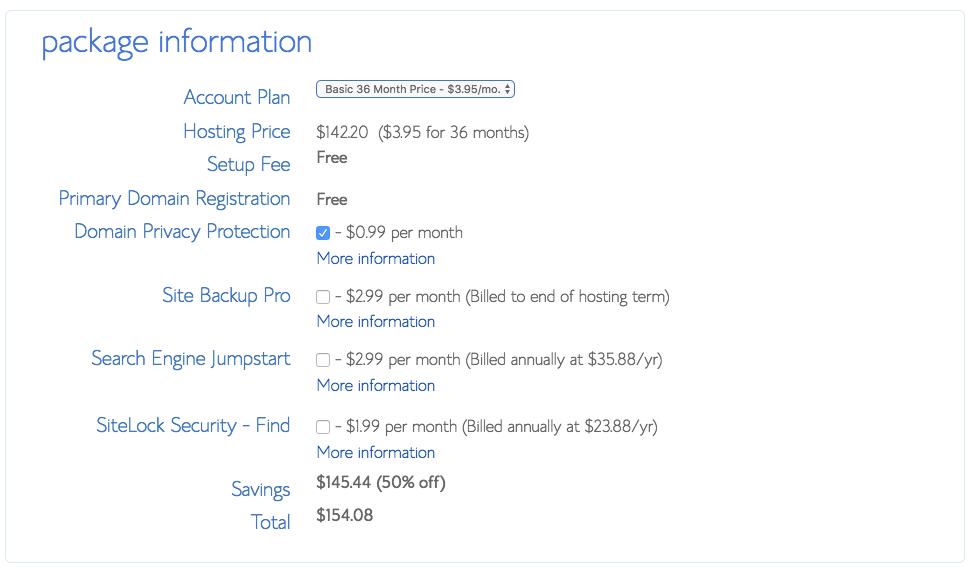
Once you’ve filled in your info and chosen your package, click “Next” to complete the purchase. Once you’ve done this you’ll be asked to create a password, you can either come up with your own password or use their generator to create a strong, secure password. Both capitols and lowercase characters are required, as well as a number and a special character (?!#, etc.) in order to protect your account.
Once you’ve made your account you can then install WordPress!
Installing WordPress
Bluehost has worked hard to make integrating WordPress as easy as possible and has it’s own “MOJO Marketplace” for installing apps, such as WordPress and other useful apps. In your cPanel, scroll to the section titled “MOJO Marketplace” and select the “One-Click Installs” button. It’ll take you to a page inside the Marketplace called “Scripts and Platforms” The blog section is at the very top so all you’ll need to do is click on the WordPress button.
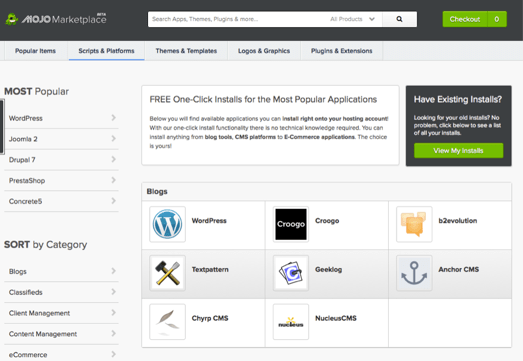
Once you click on this it will open the installation window, just click “Start” and then follow the steps.

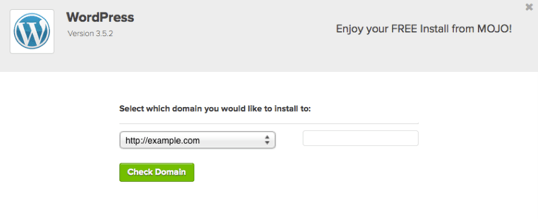
Choose where to install WordPress, it can be any domain on your account, a sub domain, or a folder used for one of them. Next click on “Check Domain” which will make sure that the domain you’ve chosen is assigned and linked to your account. You may get a warning about overwriting files but as long as you don’t already
Step 1: Choose where you want to install WordPress. This can be any domain on your account, or a subdomain or a folder for one of your domains. Next, click on “Check Domain,” which will make sure the domain is assigned and pointing to your account. You may get a warning that you are overwriting files, but as long as you don’t have another website built yet, you can check the box and continue. This is mostly to make sure that you don’t save over something important. This mainly applies if you already have other sites built.
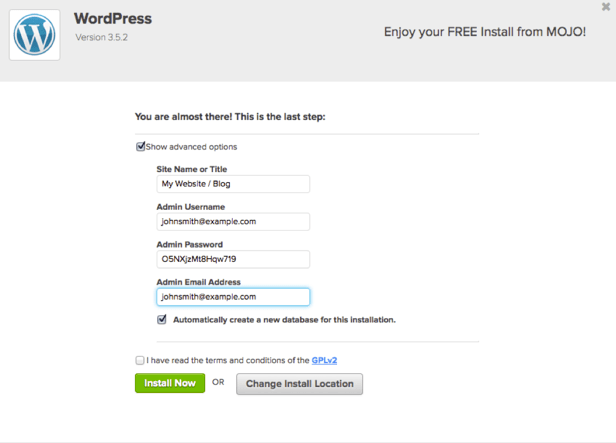
Step 2: Show Advanced Options. This section allows you to set up your own username and password for your WordPress install. IT is recommended to use a different username than “admin” and a very strong password. Make sure that the “Automatically create a new database for this installation” box is checked, unless you have a database already set up that you want to use.
Step 3: After you’ve read the terms and conditions, check the box indicating that you’ve done so, then click “Install Now.”
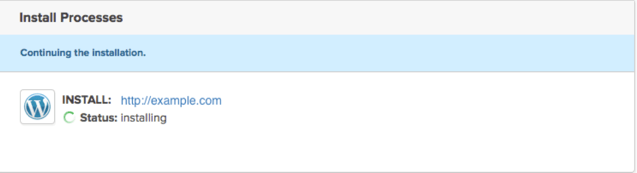
Now you’ll see the progress page which will show how far through the installation process you are. It will provide you with:
- Site URL
- Admin login URL
- Username
- Password
It will also send a copy of this (without your password) sent to you in an E-mail. Keep it safe.
Now simply go to your login URL. Enter your username and password and hit “Log in.” This will take you to your WordPress Dashboard and from here, you can control everything to do with your site; creating pages, writing posts changing the appearance etc.
 Building an Online Business
4 thoughts on “How to set up BlueHost with WordPress”